OneNote to Notion in 2026: The Complete Migration Guide
Recently, I decided to move all my notes from OneNote to Notion. That's when I realized — it's 2026, and there's still no migration tool that actually works well enough.
Ready to move your OneNote notebooks to Notion?
Scan your OneNote export first to check the pages, attachments, and migration details before anything is moved.
Scan my OneNote exportNothing is migrated until you review the scan result.
The Existing Method — Import to Obsidian, Then Convert to Notion
This is the most recommended approach on Reddit. Use the Obsidian Importer to pull your OneNote notebooks into Obsidian, then upload the converted Markdown to Notion.
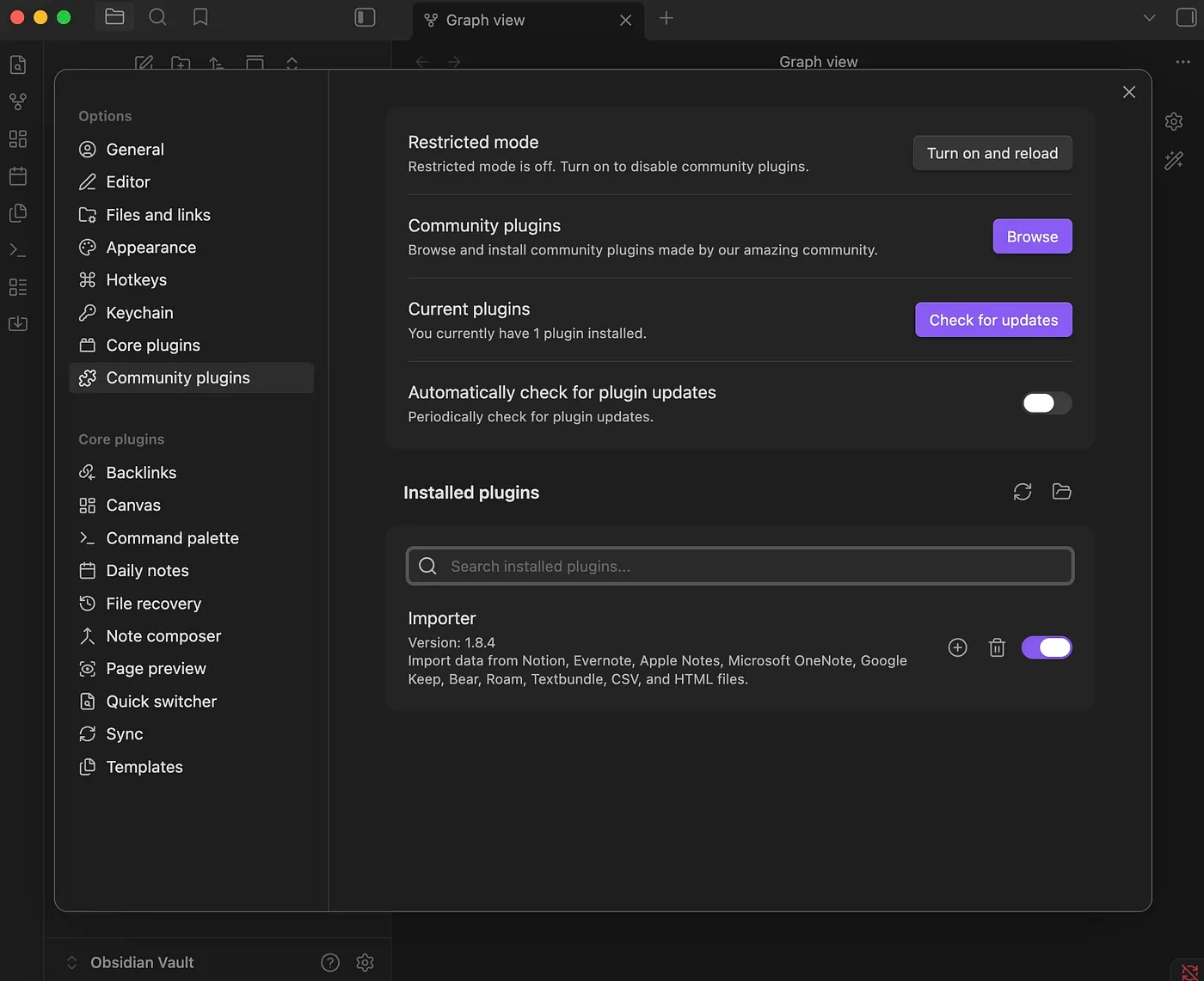
Step 1: Install Obsidian and the Importer community plugin (Settings → Community plugins → Browse → search "Importer").
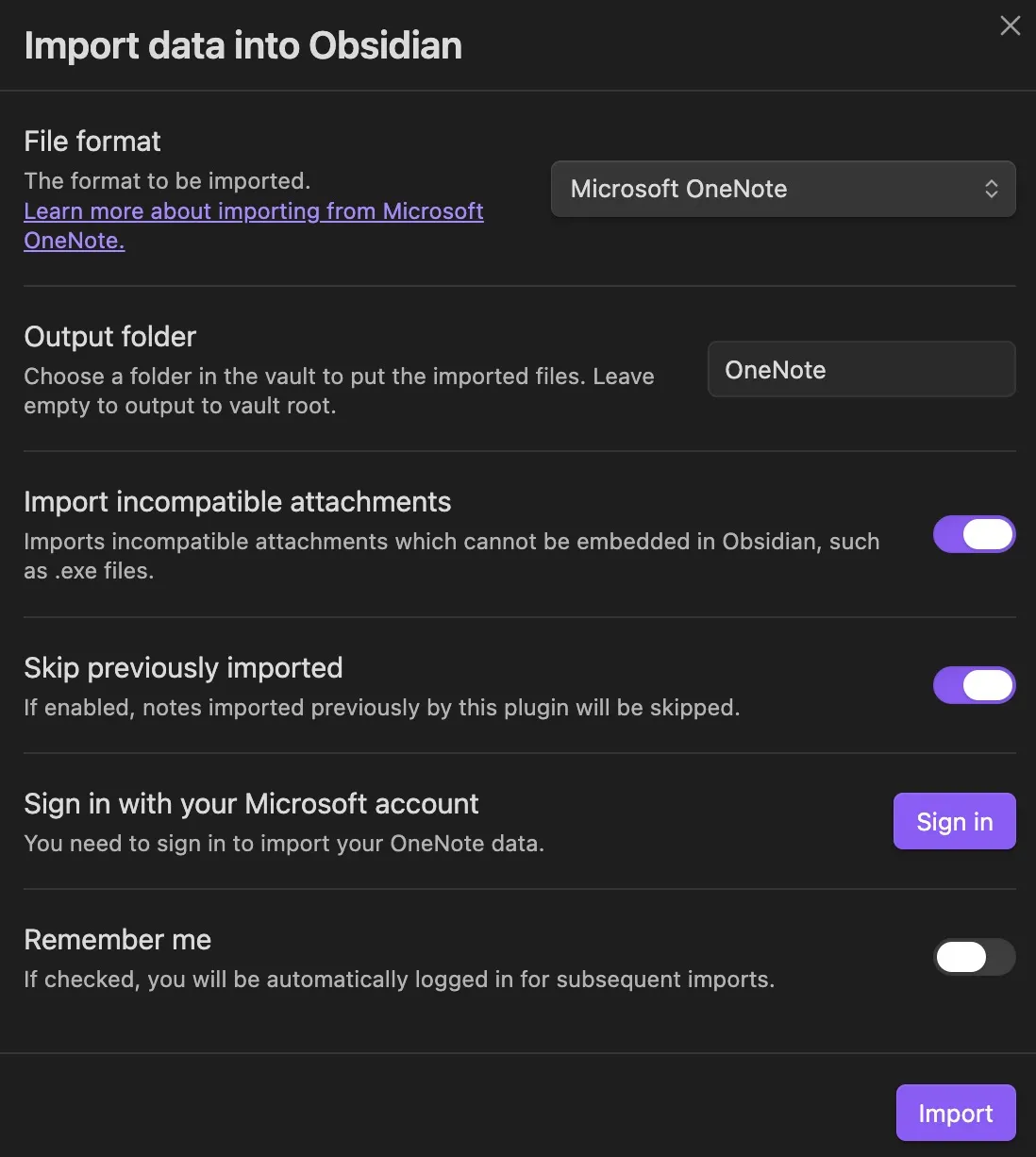
Step 2: Select "OneNote" as the source format and sign in with your Microsoft account, then wait for it to load. I waited quite a while on this step, and I only have about 1,500 pages — if you have more notebooks it could take even longer. Worse, there's no progress bar so you have no idea how long you'll be waiting. Eventually you'll see the structure of all your notebooks, and you can select which sections to migrate.

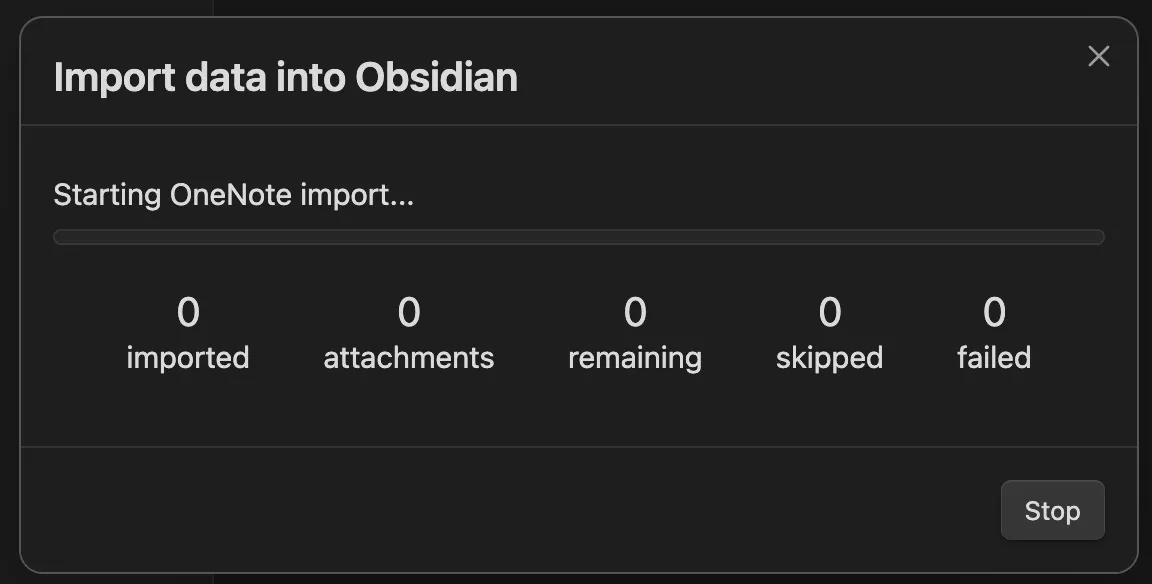
Step 3: Check the results in Obsidian. Most formatting looks fine, but:
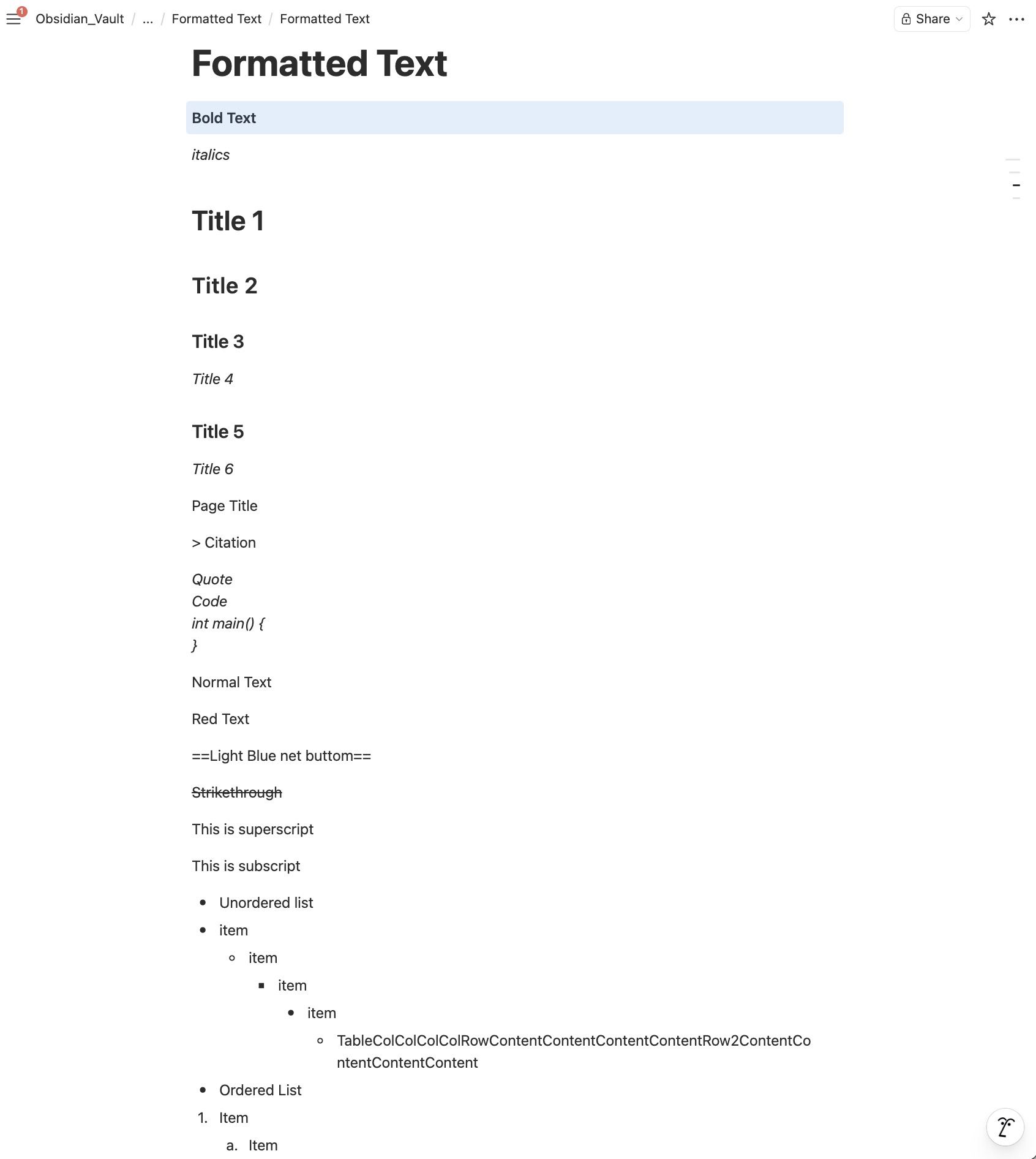
- Tables inside bullet lists are gone
- Code blocks turned into italics
- Page titles and blockquote formatting are broken
- Ink strokes and drawings are actually preserved though — that's pretty nice
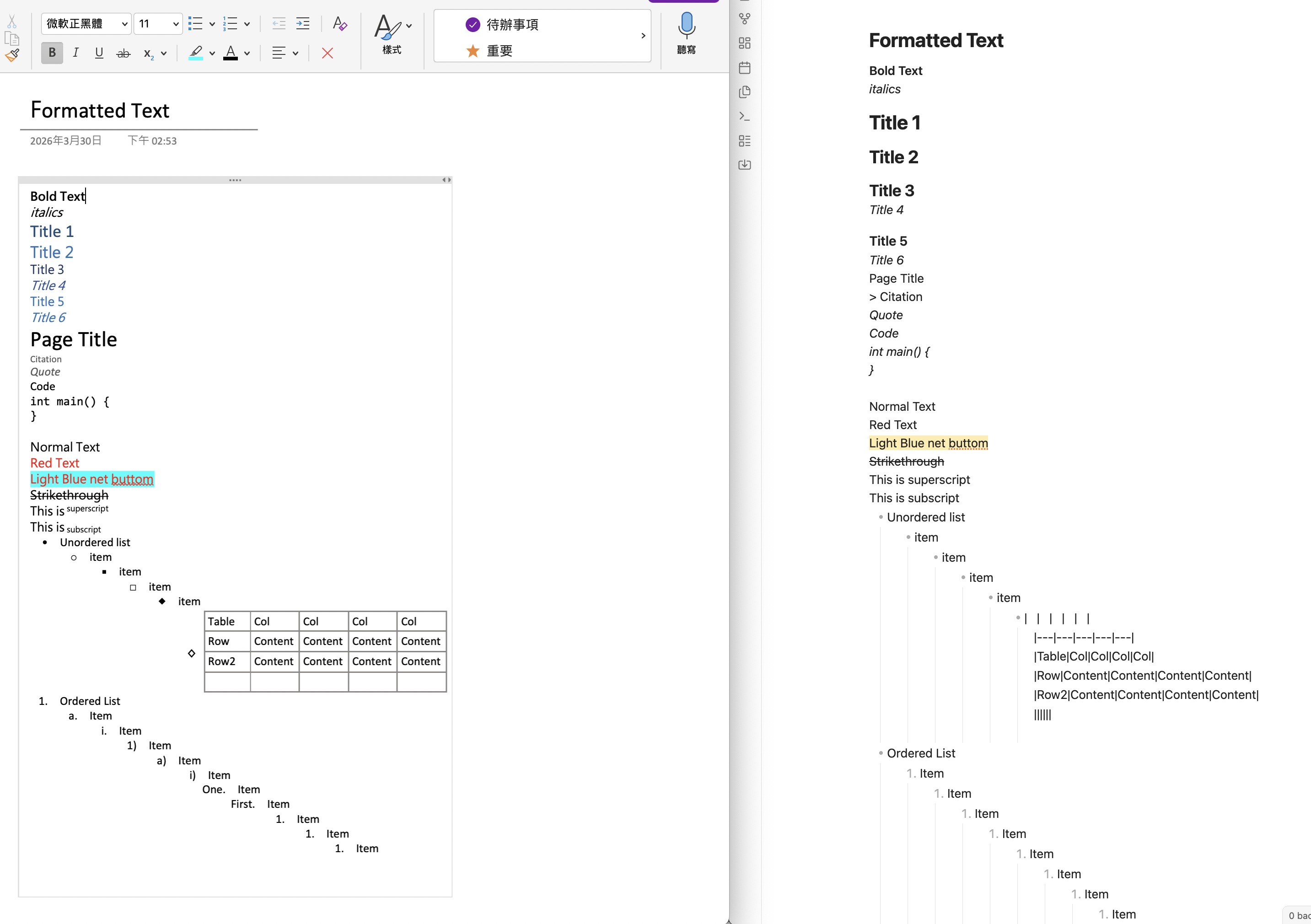
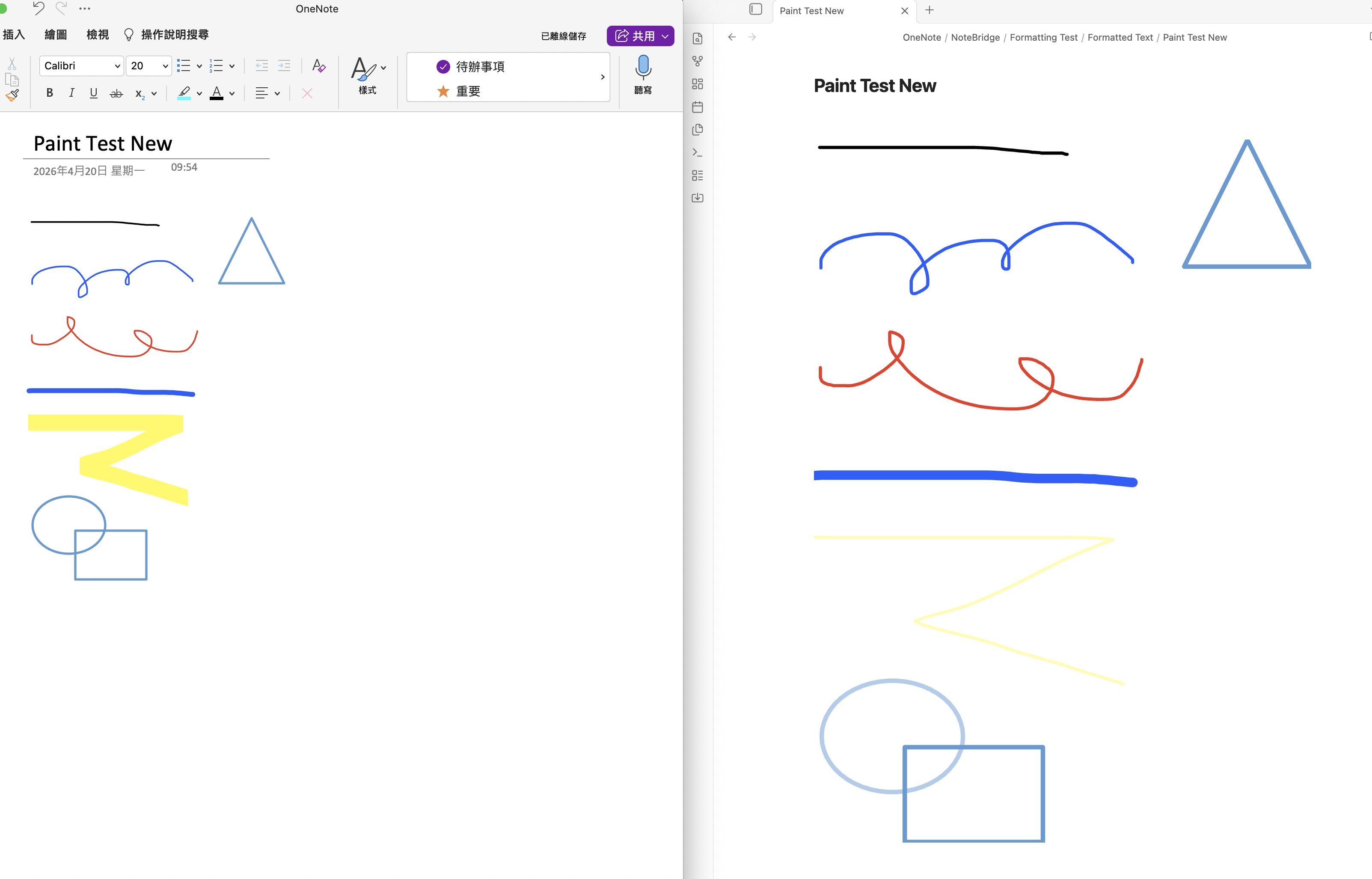
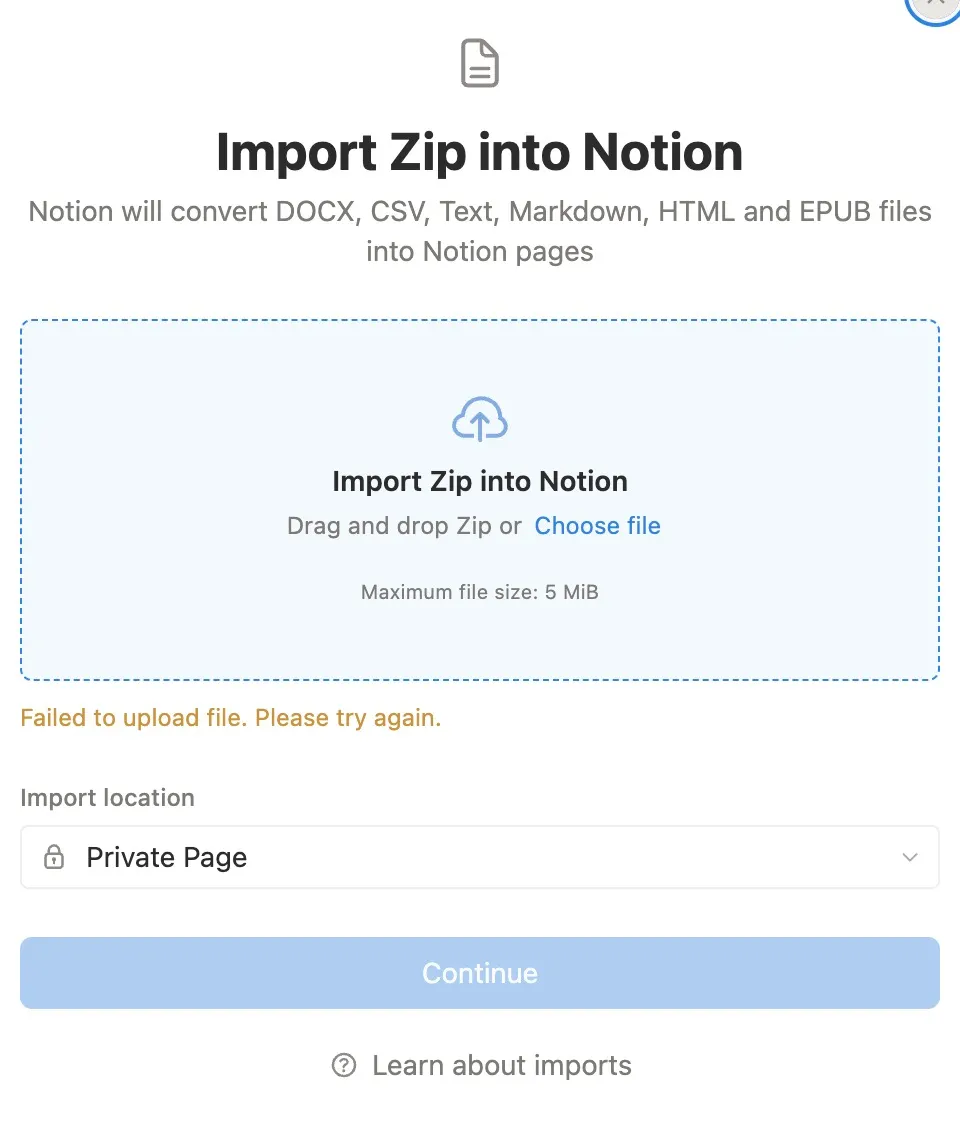
Step 4: Zip up your Obsidian vault and upload it to Notion. I hit Notion's free plan import limit of 5 MB here — just a few PDFs and you're over. The final result was worse than expected — ink drawings, sketches, and audio files all vanished. Notion apparently can't recognize them during import, leaving only broken links behind.

Takeaways
The existing method has quite a few pitfalls:
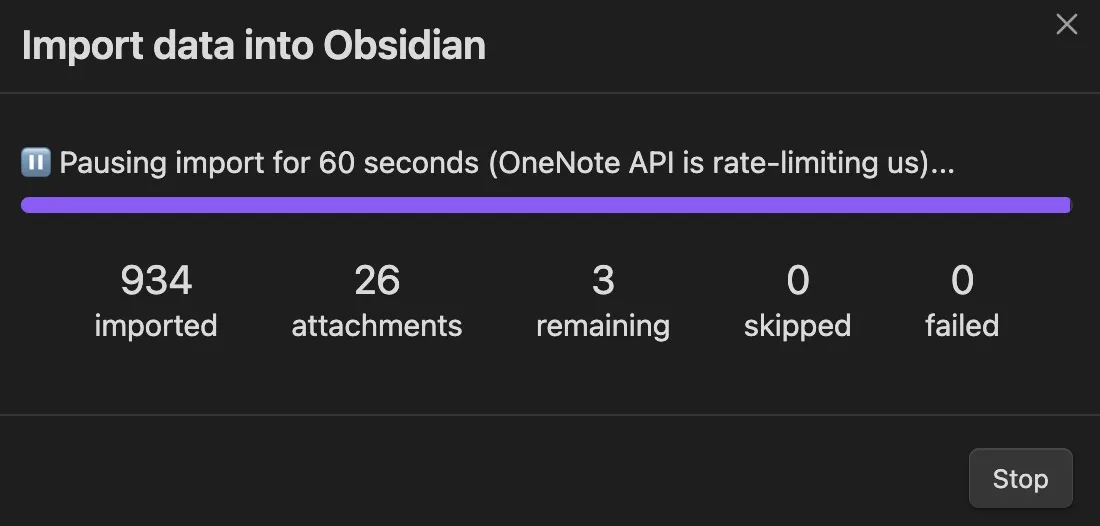
- Microsoft Graph API throttling — rate limits mean hours of waiting in front of your screen
- Formatting isn't fully compatible — a lot of formatting gets lost in the conversion
- Attachments are gone — PDFs, audio, and other files don't make it through
If you have a thousand-plus pages like me, these small issues compound into deal-breakers. Rather than checking or fixing each page one by one, it's easier to just give up on this method entirely.
A Better Way: Note Bridge
So I decided to build it myself. Note Bridge was built with one goal: preserve as much of the original formatting and structure as possible, while keeping the migration process simple.
How It Works
Step 1: Scan — Connect your Microsoft account and select a notebook. Note Bridge scans the directory structure in a few minutes, then lets you pick which pages to migrate.
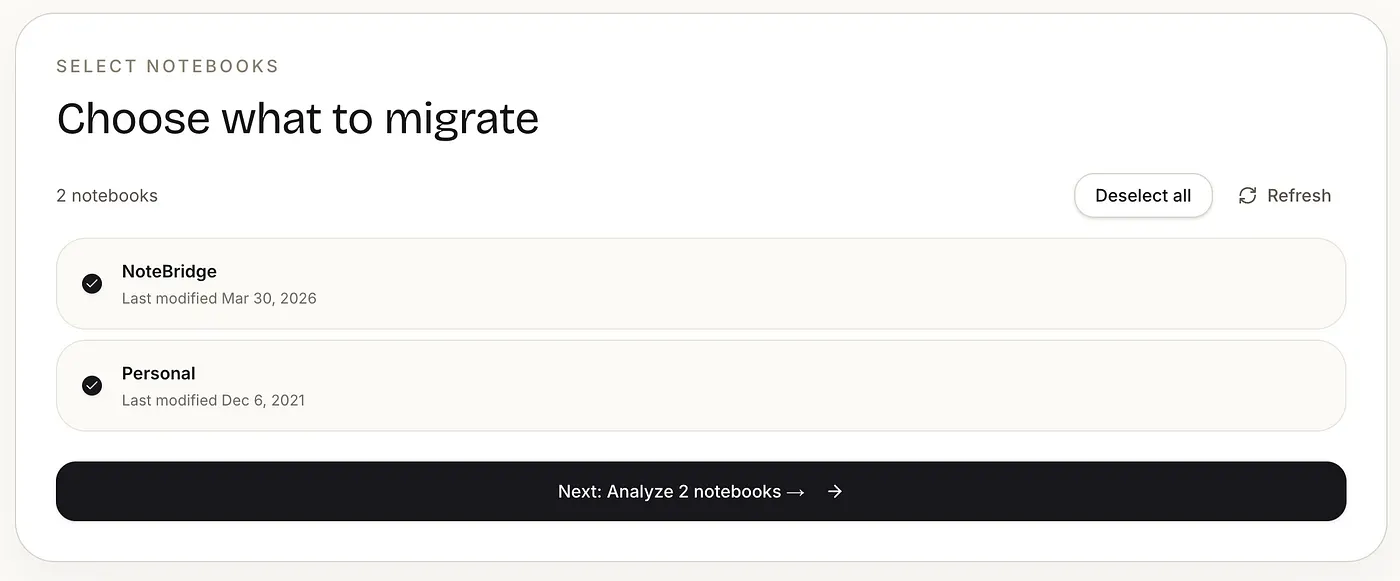
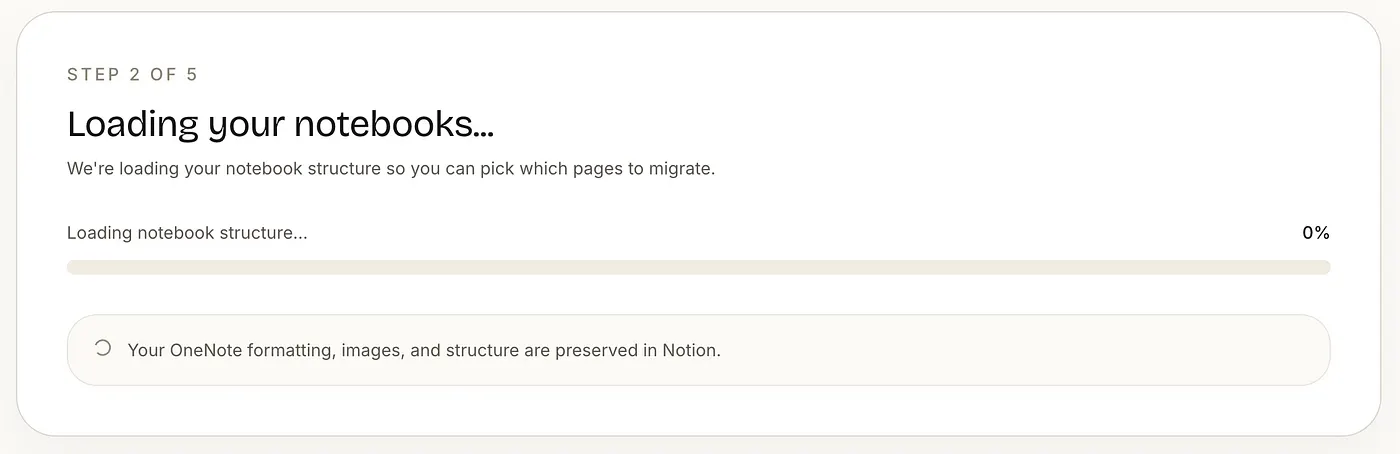
Step 2: Pick your notes — Select which notes to migrate and where they should end up in Notion.
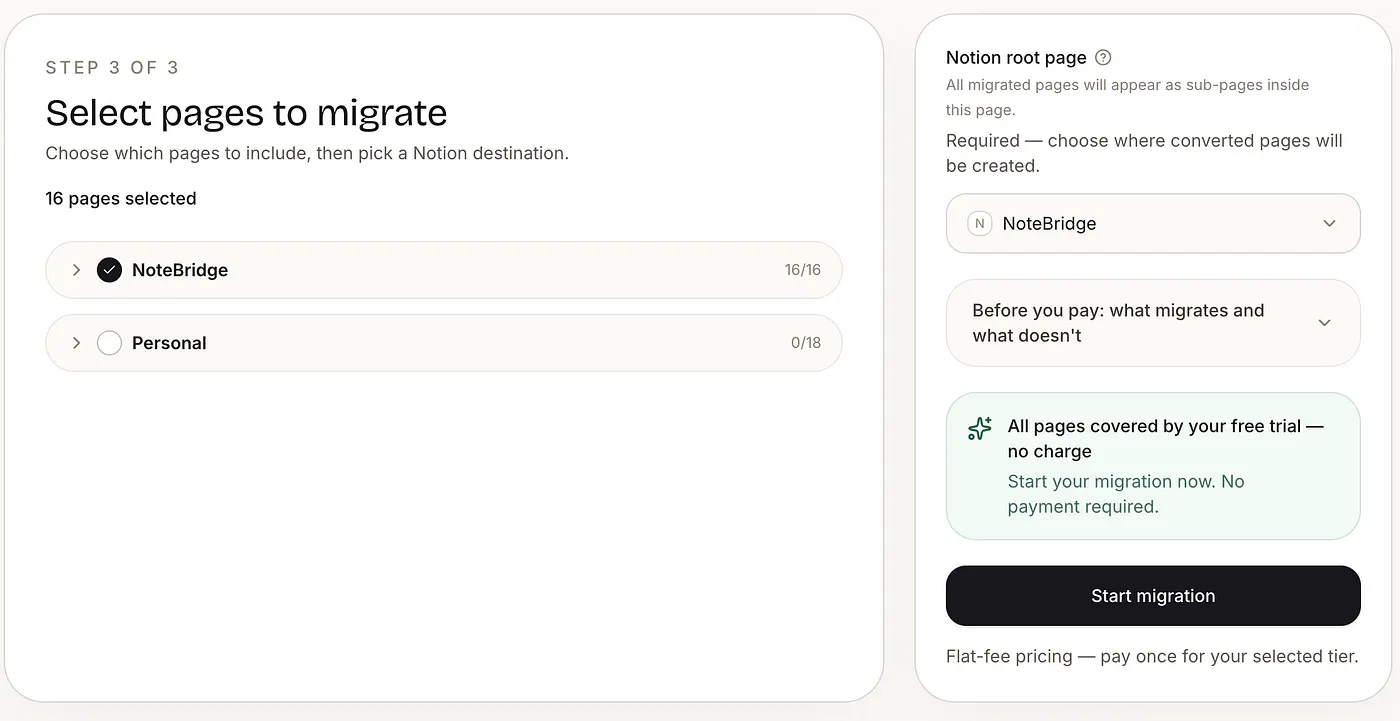
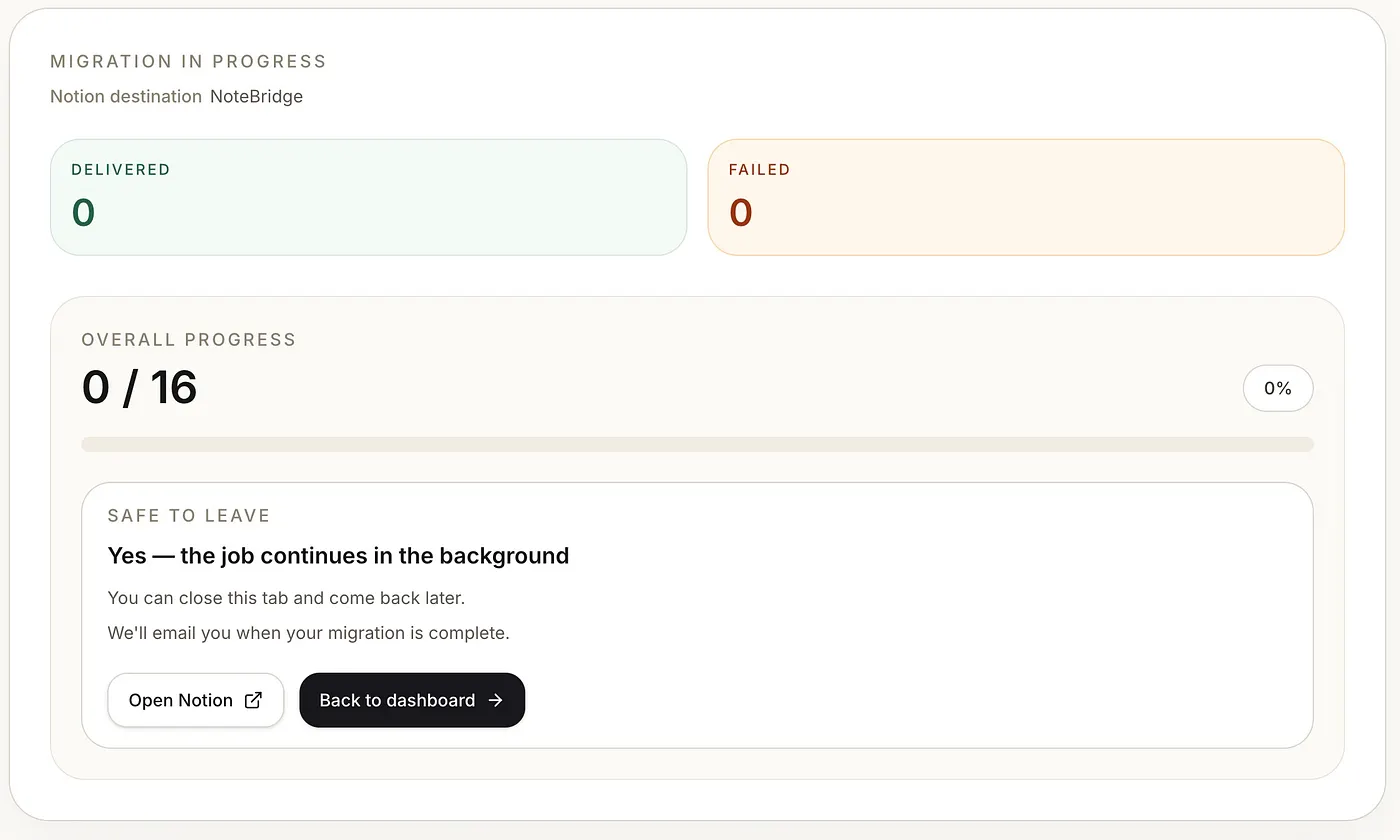
Step 3: Start the migration — Note Bridge runs it in the background. You'll get an email when it's done.
Key Differences
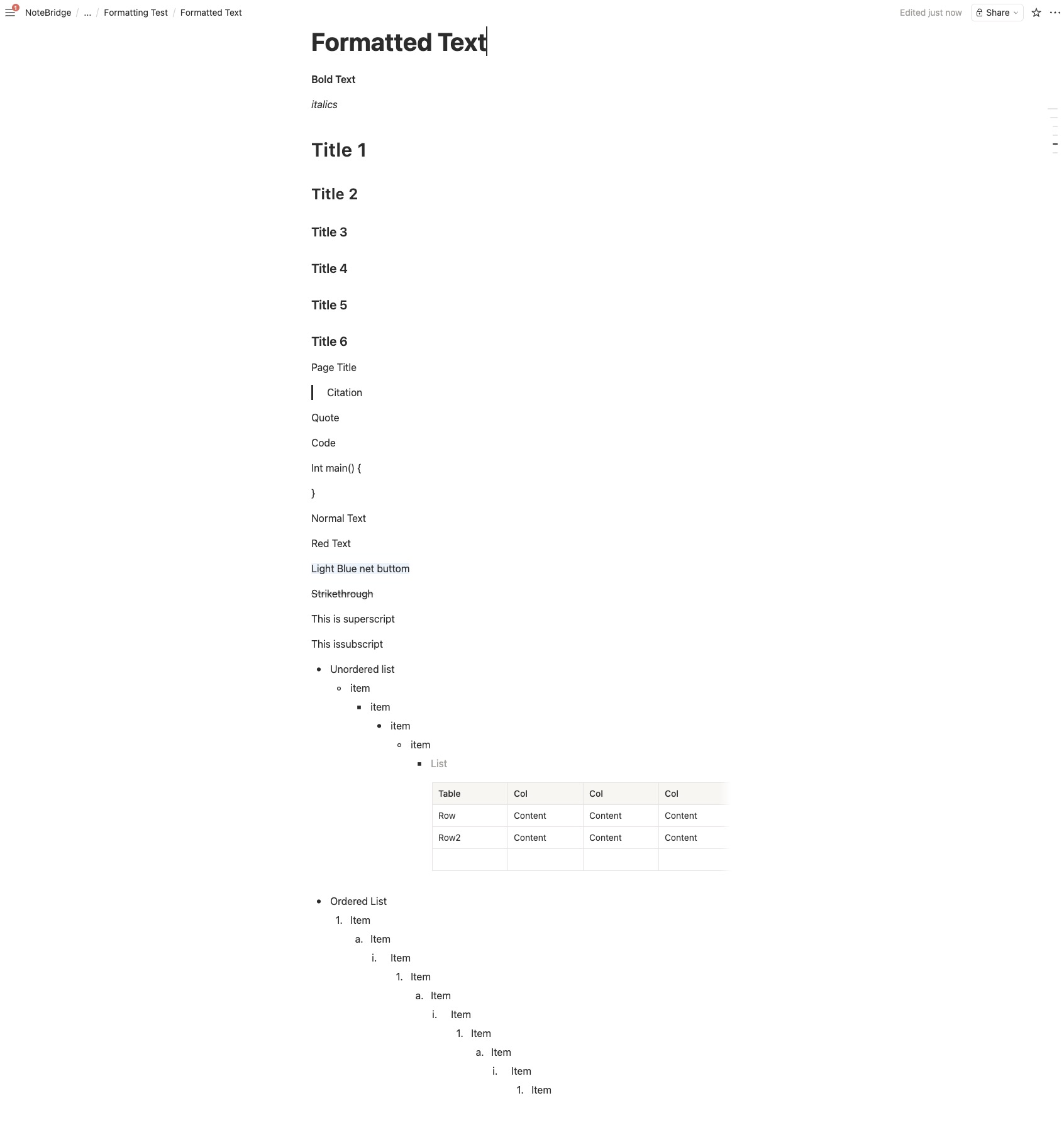
Formatting preserved as much as possible. Images, PDFs, tables, audio, and ink drawings all come across. For the full list of supported formats, check the website.
No waiting around. Once you start the migration you can leave. Let it run, and you'll get an email notification when it finishes.
Conclusion
I've always felt that when there's no good tool for the job, people just keep putting it off. I spent an entire weekend researching tools and hitting one roadblock after another, and the hard-won conclusion was: instead of waiting for someone else to build it, just build it yourself.
Give Note Bridge a try.
Want the engineering story? I wrote about the rate limiting challenges behind Note Bridge here.
Ready to move your OneNote notebooks to Notion?
Scan your OneNote export first to check the pages, attachments, and migration details before anything is moved.
Scan my OneNote exportNothing is migrated until you review the scan result.