How to Export OneNote in 2026: 4 Methods and What Each One Keeps

Most articles you find when you search “export OneNote” explain how to back up a .onepkg. That is useful if you are leaving a school account, not if you are moving your notes somewhere else.
In 2026, OneNote for Windows 10 is unsupported, the Mac app can save only PDFs, and OneNote for the web has no export at all. The only app that can export a whole notebook is OneNote for Windows desktop.
I used a small notebook to try four routes. Below, I show what each keeps and what it loses.
Does Notion import OneNote? No, Notion's Import menu has no OneNote option.
If Notion is where you are going, Does Notion import OneNote? compares the routes that work.
Method 1: .onepkg is for a OneNote backup
Choose .onepkg when you want the closest thing to keeping the notebook as it is. In OneNote for Windows desktop, open the notebook, choose File → Export, select Notebook under Current Export, choose OneNote Package (.onepkg), and select Export.
There is no way around Windows desktop for this. Microsoft's support page still describes an Export notebook option in OneNote for the web, but as of September 2026 that option is not there when you try it. The Mac app and the older Windows 10 app do not create .onepkg files either.
Keeps: The full OneNote notebook, including its sections, pages, layout, attachments, ink, and links.
Loses: Easy use in most other note apps.
Exporting a single page or section as .one
The same dialog also exports smaller pieces. Open the page, choose File → Export, select Page or Section under Current Export, choose OneNote 2010-2016 Section (.one) under Select Format, and select Export.
A .one file carries the original OneNote content for that page or section rather than a rendering of it, which makes it the right file to send when someone needs to reproduce exactly what your note contains. Windows desktop is required for this too.
Method 2: PDF keeps exactly what you see, and nothing you can edit
Choose PDF when appearance matters more than editing. On a Mac, open a page, choose File → Save as PDF, give the file a name, and save it; repeat for each page you want to keep.
PDF is the best readable archive of a finished note. The exported page kept headings, bullets, task marks, table cells, images, and the overall layout exactly where they appeared in OneNote.
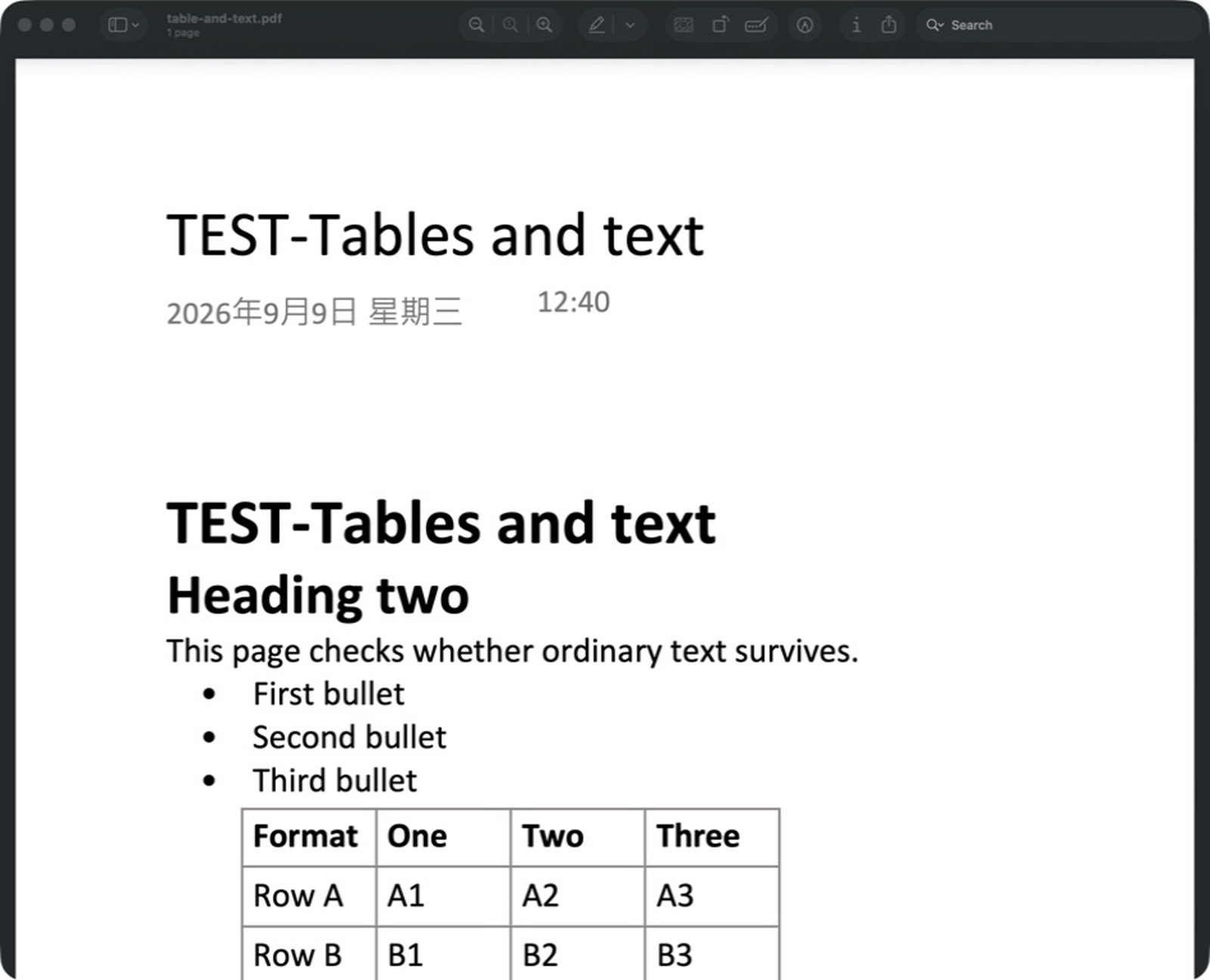
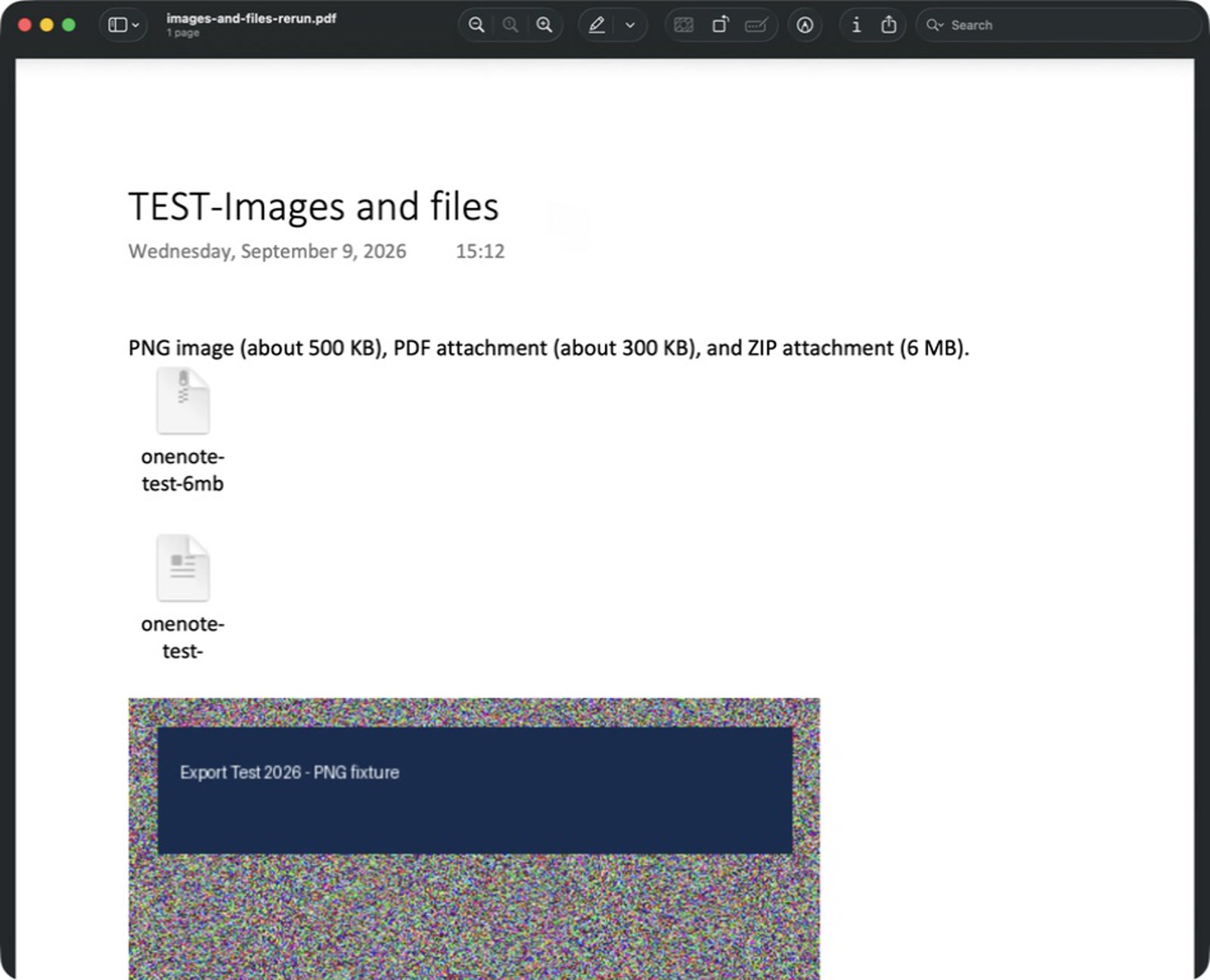
Attachments remain visible but stop being usable files. The PNG stays an image, while the PDF and ZIP become document icons inside the PDF.
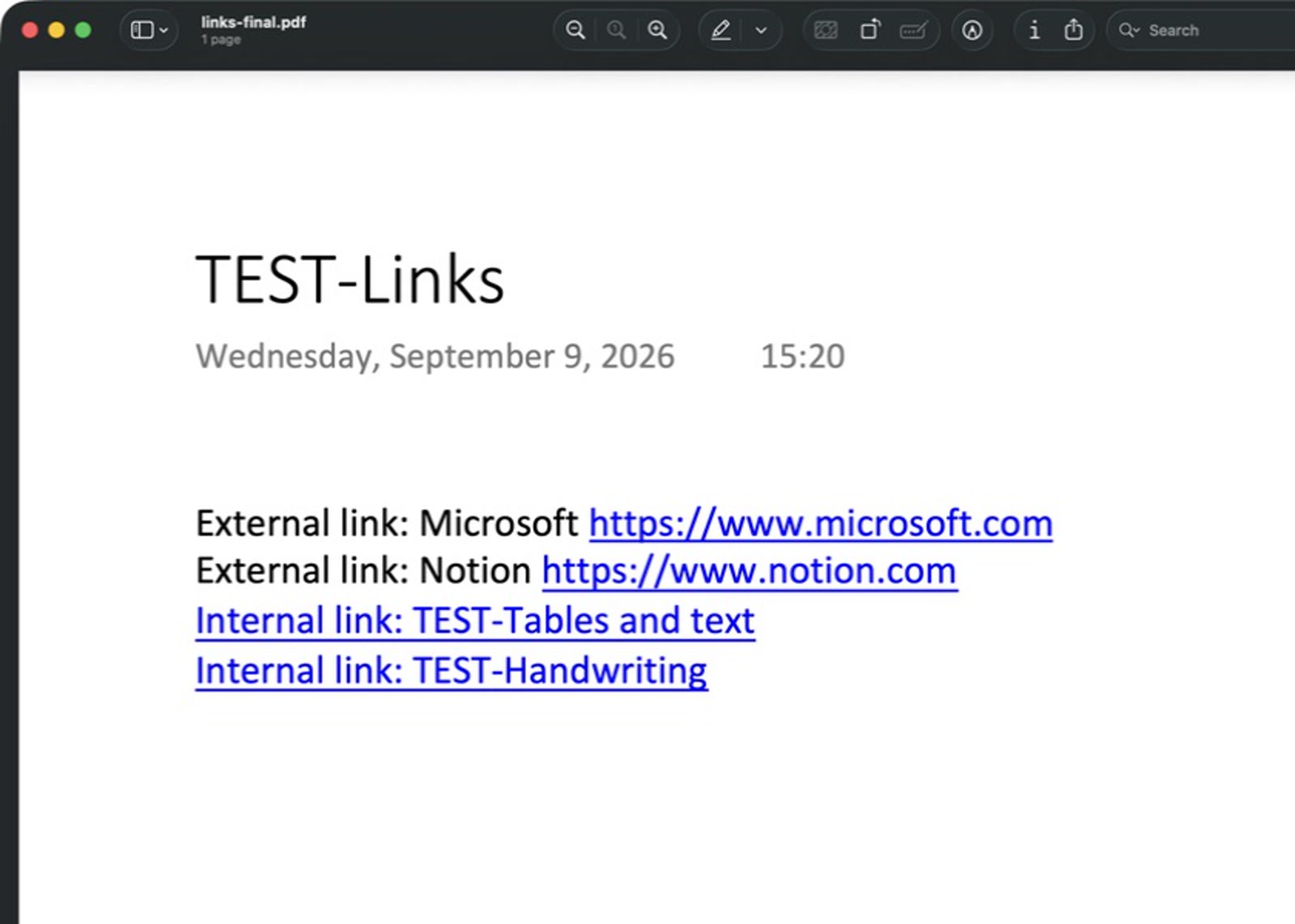
Internal links are the trade-off. They still look like blue underlined links, but copied page links did not open in Preview.
Keeps: Visual layout, text, tables, images, handwriting, and attachment icons.
Loses: Editing, usable attachments, working page links, and notebook navigation.
Method 3: Word is for a small editable set of notes
Choose Word when you have a few sections that need to stay editable. In OneNote for Windows desktop, select the section, choose File → Export, select Section under Current Export, choose Word Document (.docx), and select Export.
Word gives you editable text, headings, lists, ordinary tables, and images. It does not carry the notebook tree with it, and handwriting, attachments, and OneNote page links usually need manual cleanup after the move.
Keeps: Editable text, basic layouts, ordinary tables, and images.
Loses: Notebook hierarchy and reliable equivalents for ink, attachments, and page-to-page links.
Method 4: Obsidian Importer is for a Markdown vault
Choose Obsidian Importer when you want a Markdown vault: its official importer can sign in to the Microsoft account that owns your synced notebooks, or read local .onepkg and .one files. I showed the converted OneNote and Obsidian pages side by side in how to migrate from OneNote to Notion, including ink becoming a visible SVG image. The importer turns sections and subpages into folders and Markdown notes, though complex formatting and tables may need tidying.
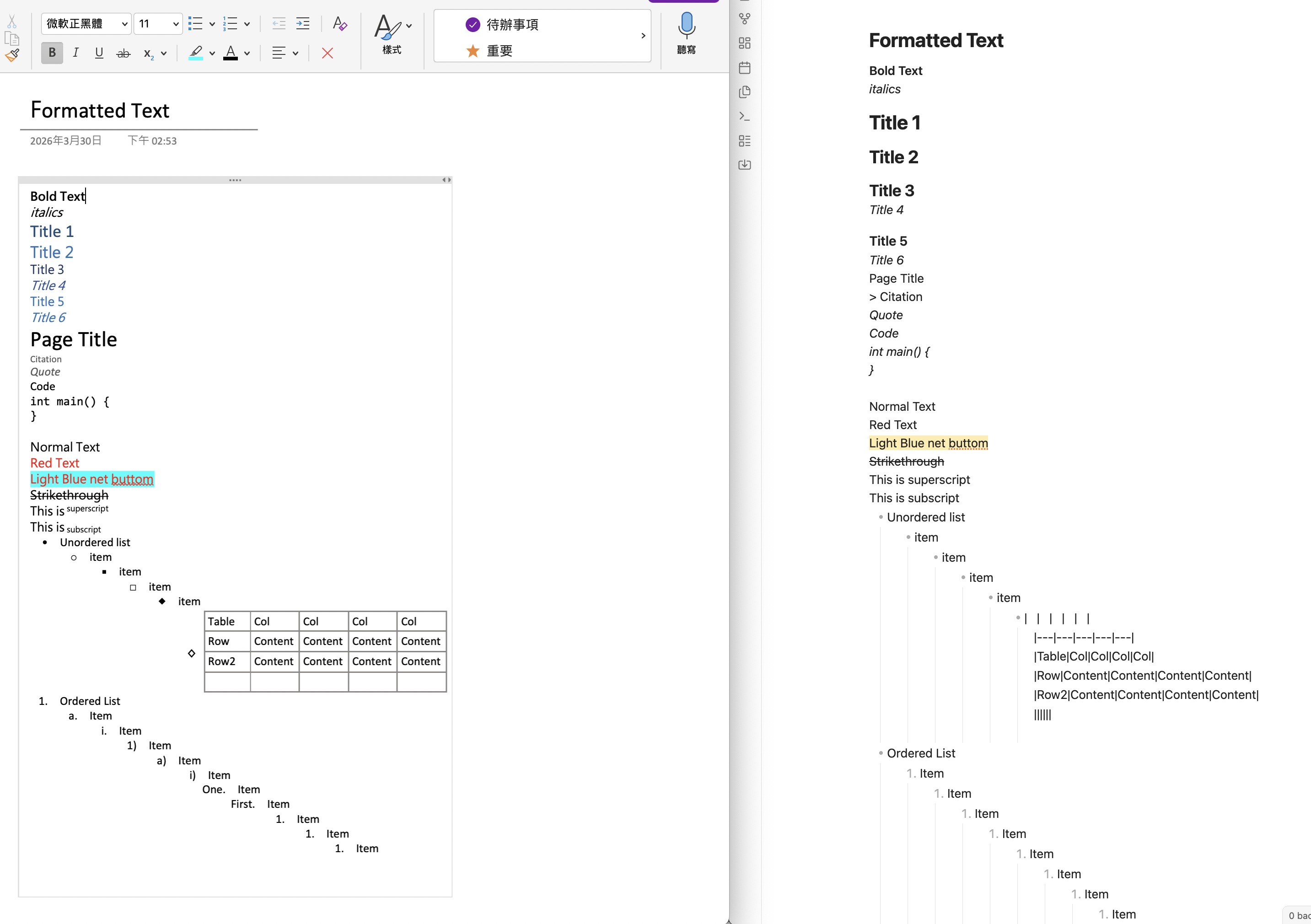
Keeps: Markdown notes, file assets, and section and subpage folders.
Loses: Some elaborate layout and part of the formatting in complex tables.
Which one are you?
| Content | .onepkg |
.docx |
Obsidian Importer → Markdown | |
|---|---|---|---|---|
| Text and simple tables | Yes | Yes | Yes | Partly |
| Images | Yes | Yes | Yes | Yes |
| Attachments | Yes | No | Partly | Yes |
| Handwriting | Yes | Yes | Partly | Yes |
| Page-to-page links | Yes | No | Partly | Partly |
| Hierarchy | Yes | No | No | Yes |
The PDF column reflects my OneNote-for-Mac output; the other columns follow Microsoft's export guidance and Obsidian's OneNote documentation.
I just want a backup
Choose .onepkg if your priority is reopening the notebook in OneNote later. Make the package on Windows desktop, then keep PDFs of pages whose appearance matters.
I need a readable archive
Choose PDF if you want a copy that opens anywhere and looks the same. It is the right answer for handwritten notes, finished reference material, and pages you want to print or share.
I am moving to another app
If Notion is your destination, how to migrate from OneNote to Notion explains which route to take next. Choose Word for a small set of notes you need to edit, and choose Obsidian Importer for a Markdown vault.
FAQ
Can OneNote export to Markdown?
Yes, but not from OneNote's own export menu. Obsidian Importer signs in to your Microsoft account and writes your notebooks out as a Markdown vault. one-note-to-markdown does the same job as a standalone Windows desktop app.
Does Notion import OneNote directly?
No, Notion's Import menu has no OneNote option. Does Notion import OneNote? compares the routes that work instead.
How do I export just one OneNote page?
In OneNote for Windows desktop, choose File → Export, select Page under Current Export, and choose OneNote 2010-2016 Section (.one) for the original content or PDF for a readable copy.
Can I export a whole OneNote notebook on Mac?
No. The Mac app can only save individual pages as PDF, and OneNote for the web cannot export at all. To get a whole notebook out as .onepkg, you need OneNote for Windows desktop.
Which OneNote export keeps tables?
PDF keeps a table's appearance, while Word keeps ordinary tables editable. Obsidian Importer brings tables into Markdown, where simple grids work best and more elaborate formatting becomes partial.
Which OneNote export keeps handwriting?
PDF keeps handwriting as part of the page image. Obsidian Importer keeps it visible as an SVG image, while .onepkg keeps the original OneNote ink.
What happens to OneNote attachments?
.onepkg keeps the original attachments, and PDF leaves a visible icon in their place. Word and Markdown routes can carry files forward, but the result is no longer the same embedded OneNote object.
Conclusion
None of these four routes is better than the others. Pick the one that matches where your notes are going, and use the table above to see what it leaves behind.
If Notion is your destination
Note Bridge connects to your Microsoft account and writes your pages into Notion, with no export file in between. The scan lists what it will skip, including password-protected sections. Files over 5 MB are skipped and listed in the migration report.
Scan my OneNote notebooksNothing is migrated until you review the scan result.