Obsidian to Notion: 2026 Migration Guide
We did a thorough and exhaustive survey of how to migrate from Obsidian to Notion in 2026. Here's what we found.
Ready to move your Obsidian vault to Notion?
Scan your Obsidian vault first to check the notes, attachments, and migration details before anything is moved.
Scan my Obsidian vaultNothing is migrated until you review the scan result.
Existing Approaches
Path 1: Notion's built-in ZIP import
Notion's backend offers "Settings → Import → Markdown & CSV," which supports ZIP uploads and natively accepts Obsidian and other markdown-like formats. It's the first thing most people try.
It correctly handles: headings, bold and italic, lists, code blocks, tables, LaTeX, and standard Markdown links [text](url).
But none of the extended syntax Obsidian users rely on is supported by Notion:
- Wikilinks
[[Page Name]]— become plain text brackets; every cross-note link breaks - Callouts
> [!note]— become generic blockquotes; the icon and color disappear - Embedded images
![[image.png]]— Notion doesn't recognize this syntax and renders it as literal text - YAML frontmatter — the
----wrapped metadata block is dumped at the top of the page as raw text - Inline tags
#tag— stay as plain text; they don't turn into Notion tags - Folder structure — partially preserved, but the official Notion documentation is vague on the rules
Beyond the formatting losses, the most common thing you'll hit during migration is the free-plan file size limit (5 MB; 5 GB on paid). The official docs also note that imports over 10,000 files can break, even when no individual file exceeds the size limit.
Path 2: Third-party scripts
If Notion's built-in importer doesn't fit, there are a few obsidian-to-notion projects on GitHub, but most are in rough shape:
Cobertos/md2notion— archived in 2023, depends on a deprecated private Notion APIEasyChris/obsidian-to-notion— an Obsidian plugin, unmaintained since 2023, and only sends one page at a timep-meier/obsidian-to-notion/JimBarrows/obsidian-to-notion— small Python scripts with single-digit stars; you bring your own API token, and extended syntax like callouts is only partially supported
In practice, none of these are usable as a production solution. They're abandoned, you have to work through a lot of friction just to migrate a few pages, and the tools can't guarantee conversion quality.
Path 3: Manual copy-paste
Notion's editor parses Markdown on paste, so copying notes one page at a time does work — headings, bold, lists, tables, and code blocks all convert correctly.
But:
- Wikilinks remain plain text; you have to recreate each link manually with
@ - A 200-page vault takes 1–2 hours
- It's easy to miss pages and easy to link to the wrong target
Path 4: Pandoc / HTML as an intermediate
Convert Obsidian content to HTML with Pandoc or the Webpage HTML Export plugin, then paste into Notion. This preserves some styling, but you have to assemble the pipeline yourself, there's no end-to-end tool, and wikilinks still break. This project has also been unmaintained since 2022.
Path 5: Don't migrate — run both apps
Just give up — this is the most common recommendation in r/Notion and r/ObsidianMD: use Notion for team collaboration and databases, use Obsidian for personal notes.
The problem with running both is the long-term maintenance cost — the same information has to be updated in two places, searches happen twice, and your teammates can't see anything in your personal vault. If you're thinking about migrating, it's usually because these pain points have already accumulated.
The Shared Core Problems
If you line up the four active paths above, the failure modes overlap heavily:
- Wikilinks die — no tool resolves
[[]]across files and creates real Notion page links - Obsidian extended syntax is incompatible — callouts, highlights, frontmatter, and embed syntax all fall apart in Notion
- Attachments are lost — local images, PDFs, and audio files don't get uploaded
- Abandonware — most tools are abandoned and depend on APIs that have moved on
- Doesn't scale — manually fixing a few hundred pages by hand isn't realistic
Notion doesn't appear to plan to fully support Obsidian's syntax — it treats ZIP upload as a generic Markdown import. Obsidian, on the other hand, has grown a whole syntax stack for personal knowledge management, and those constructs have no native equivalent in Notion (or are awkward to map cleanly). That's the current state of the world.
What Note Bridge Does
We built Note Bridge's Obsidian to Notion feature to solve each of these problems at the root.
Wikilinks: a two-pass scan
The root cause of broken wikilinks is the forward reference problem — when the importer sees [[Note B]], Note B hasn't been created in Notion yet, so there's no page ID to link to.
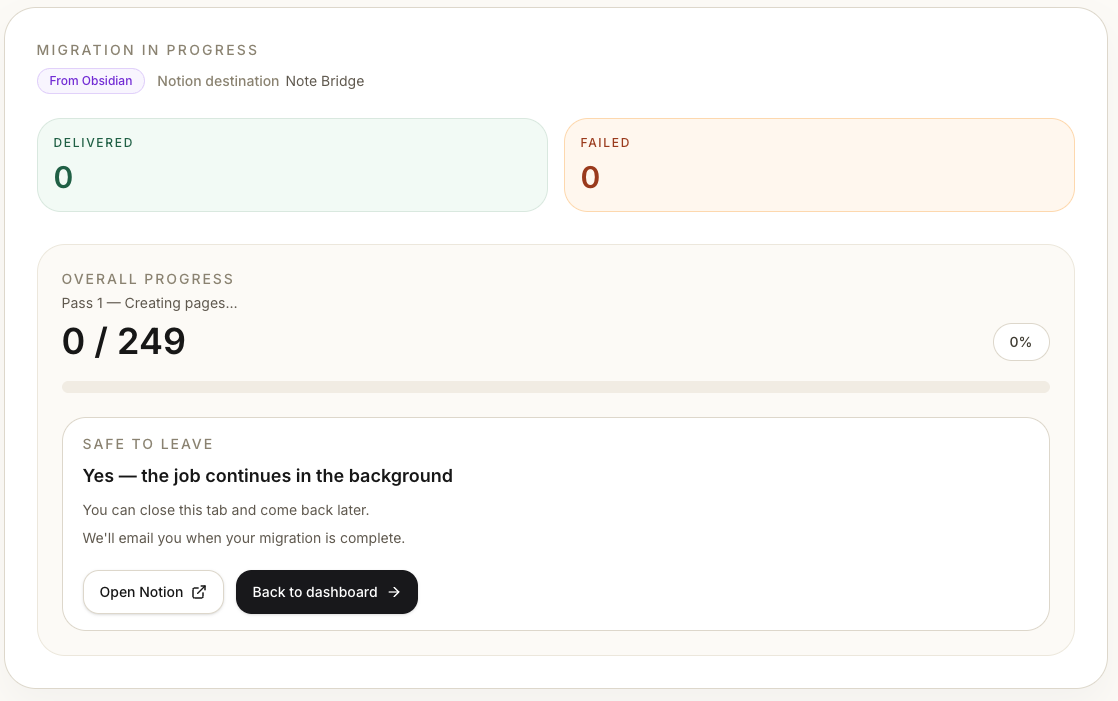
Note Bridge uses a two-pass scan:
- Pass 1: Create pages in Notion for every selected note, and record an "Obsidian filename → Notion page ID" lookup table
- Pass 2: Walk back through and fill in each page's content; when a
[[]]appears, look up the target page ID and create a real Notion page mention
On top of that, [[Page|alias]] keeps its alias, and ![[image.png]] finds the file in the vault and uploads it to Notion.
Three-state links, no fake links
Not every wikilink target gets migrated — users may only select some pages, and some links point to files that don't exist at all. Note Bridge renders links in three states:
- Target is in the vault and migrated → Notion page link
- Target is in the vault but not selected this run → plain text
Page Name (not migrated) - Target isn't in the vault at all → warning plain text
⚠️ Page Name
When users open Notion afterward, they can immediately see which links are live and which need a follow-up migration.
Pull related pages in automatically
What if you select one page, but that page links to 30 others? Note Bridge runs an expansion step before migration — it recursively follows wikilinks and attachment references from every selected note and surfaces the whole connected network so you can decide whether to bring it along. The default is checked, but individual items can be unchecked.
Obsidian-specific syntax
| Syntax | Note Bridge handling |
|---|---|
Callout > [!type] |
25 types supported (note / warning / danger / tip, etc.), converted to quote blocks with an emoji title |
Highlight ==text== |
Converted to Notion's yellow-background annotation |
Inline math $x^2$ / block math $$...$$ |
Converted to Notion equation blocks |
Footnote [^1] |
Footnote definitions are inlined at the reference site as (footnote: ...) |
Comment %%...%% |
Removed (matches Obsidian's "hidden" semantics) |
| YAML frontmatter | Converted to a collapsed Metadata block at the top of the page |
Inline tags #tag |
Preserved as `#tag` (not mapped to Notion tag properties) |
| Dataview queries | Not executed; the original query text is preserved and marked "Not supported in Notion" |
Attachments
![[image.png]], PDFs, audio (mp3/wav/flac), and video (mp4/webm) are located in the vault and uploaded to the target via the Notion API. Currently we support up to 5 MB per file (aligned with the Notion free-plan limit); files over that size are listed in the migration report.
Folder structure
Multi-level folders in the vault map to multi-level pages in Notion, with no depth limit. Even if you only select a page deep inside a folder, the intermediate parent pages are created so the original structure is preserved.
Notion built-in import vs Note Bridge — comparison
| Feature | Notion built-in | Note Bridge |
|---|---|---|
| Headings, bold, lists, basic Markdown | ✅ | ✅ |
| Code blocks (with language tags) | ✅ | ✅ |
| Tables (including tables inside lists) | Partial | ✅ |
| LaTeX math | ✅ | ✅ |
External [text](url) links |
✅ | ✅ |
Wikilink [[Page]] |
❌ becomes plain text | ✅ Notion page mention |
Wikilink alias [[Page|Display Name]] |
❌ | ✅ alias preserved |
Embedded image ![[image.png]] |
❌ | ✅ uploaded to Notion |
Callout > [!note] |
❌ becomes plain blockquote | ✅ 25 types, with emoji |
Highlight ==text== |
❌ shows literal equals signs | ✅ yellow background |
| YAML frontmatter | ❌ raw text | ✅ collapsed Metadata block |
Footnote [^1] |
❌ lost | ✅ inlined at reference |
Obsidian comment %%...%% |
❌ leaks as visible text | ✅ correctly hidden |
| Local images, PDFs, audio | ❌ can't upload | ✅ uploaded to Notion |
| Folder structure | Partial | ✅ fully mapped |
| Cross-file link resolution | ❌ | ✅ two-pass processing |
| Missing-link hints | ❌ silently broken | ✅ three-state marking |
How It Works in Practice
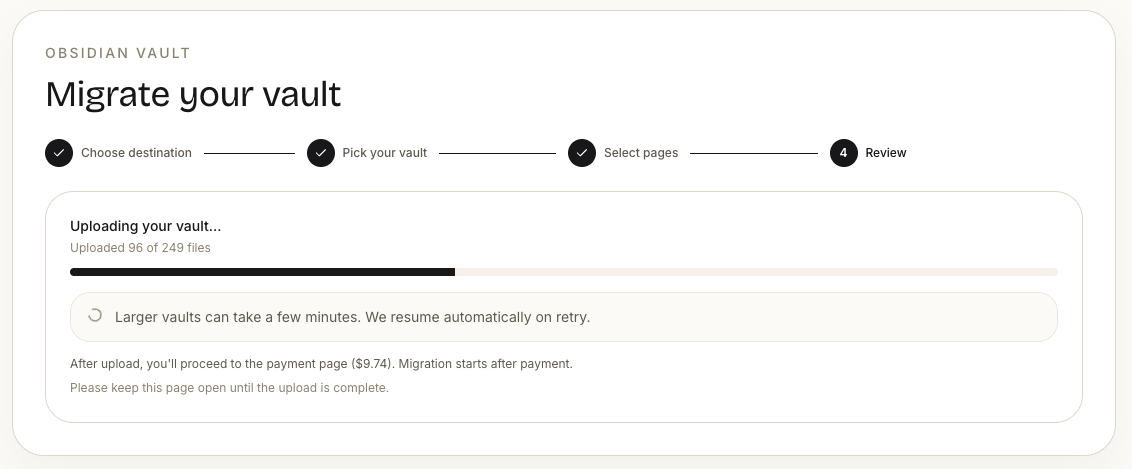
The Obsidian migration in Note Bridge is four steps:
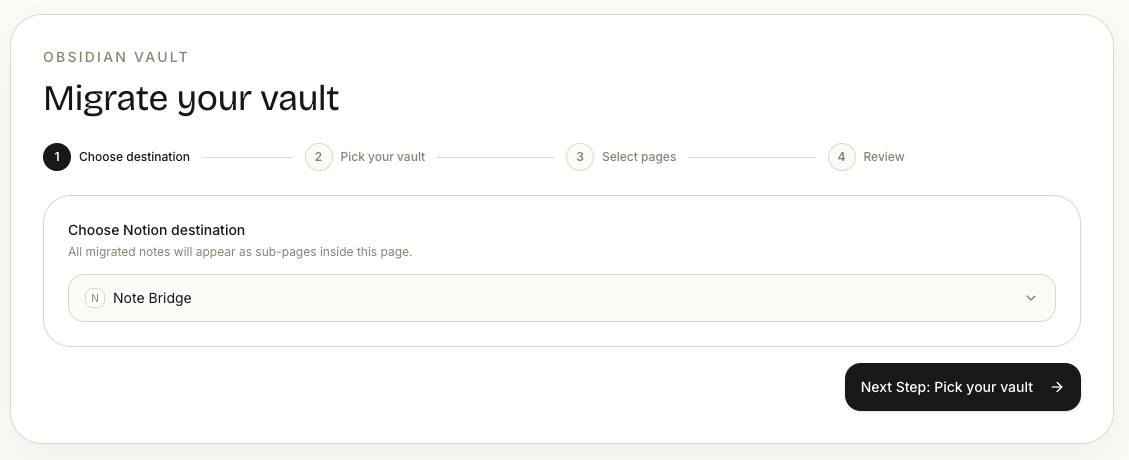
Step 1: Pick a Notion destination
After connecting your Notion account, choose which page in Notion to nest your notes under.
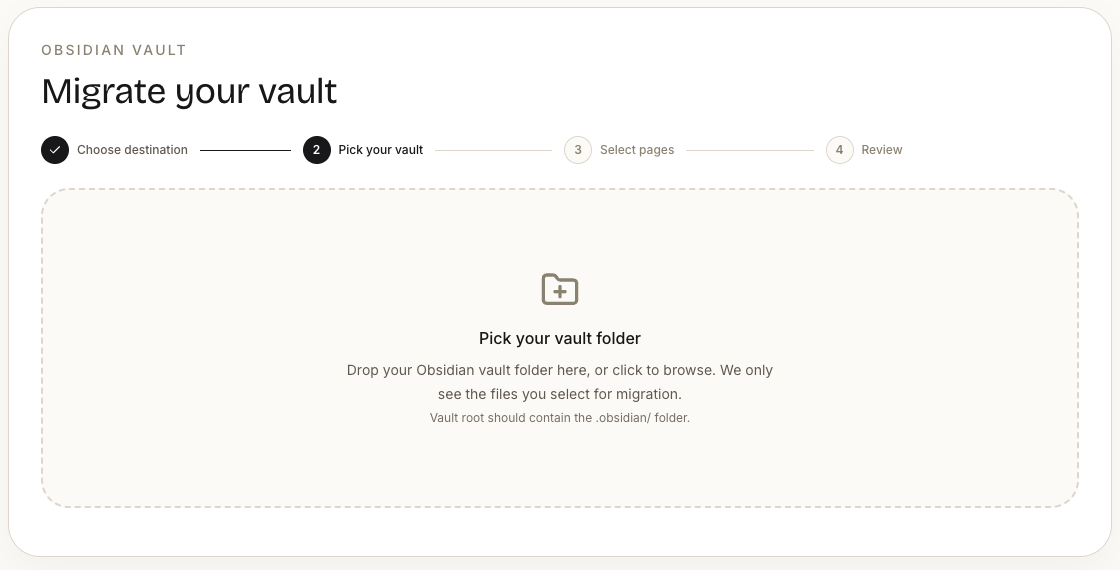
Step 2: Select your Obsidian vault
Note Bridge uses folder selection instead of ZIP upload — pick the vault folder directly from the browser, no zipping and no plugin install. System files like .obsidian/, .git/, and .DS_Store are skipped automatically.
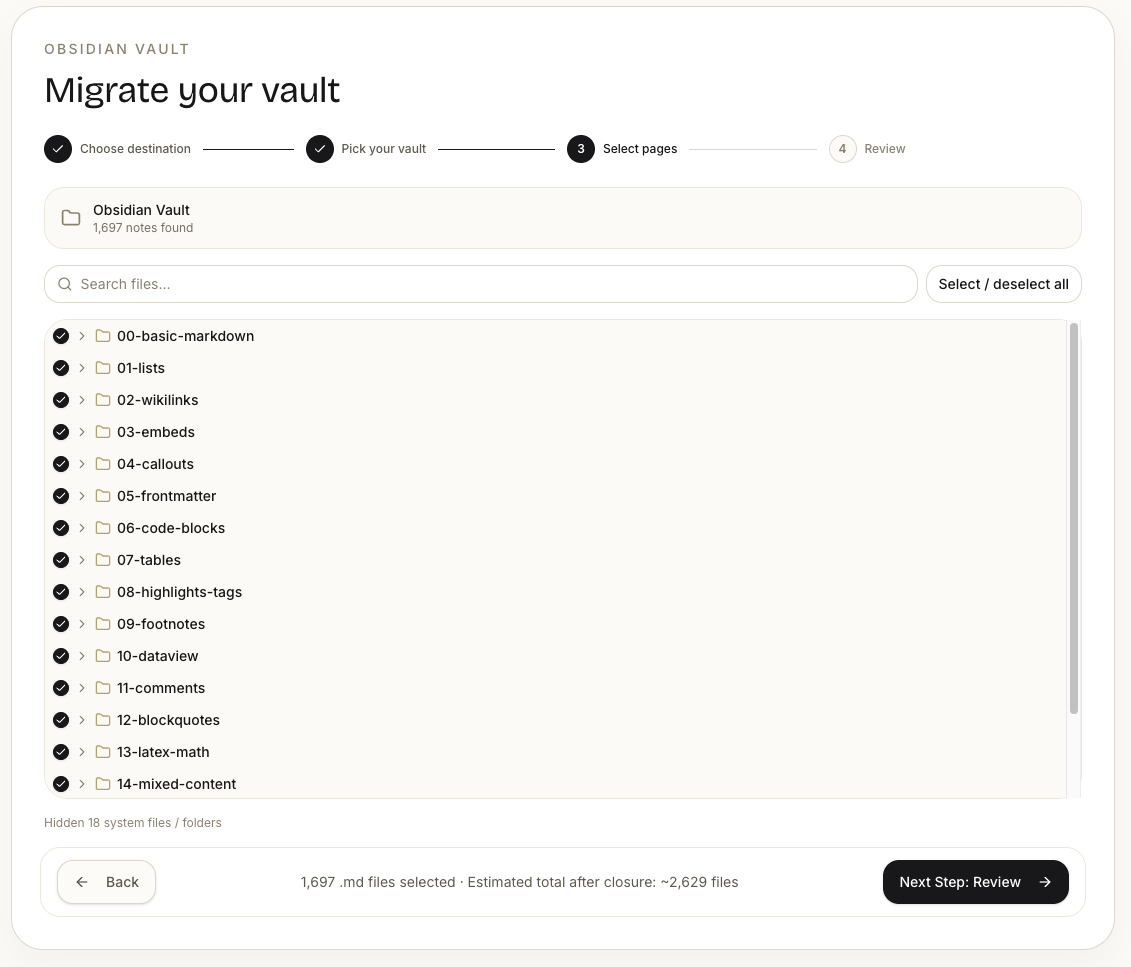
Step 3: Choose notes to migrate and review
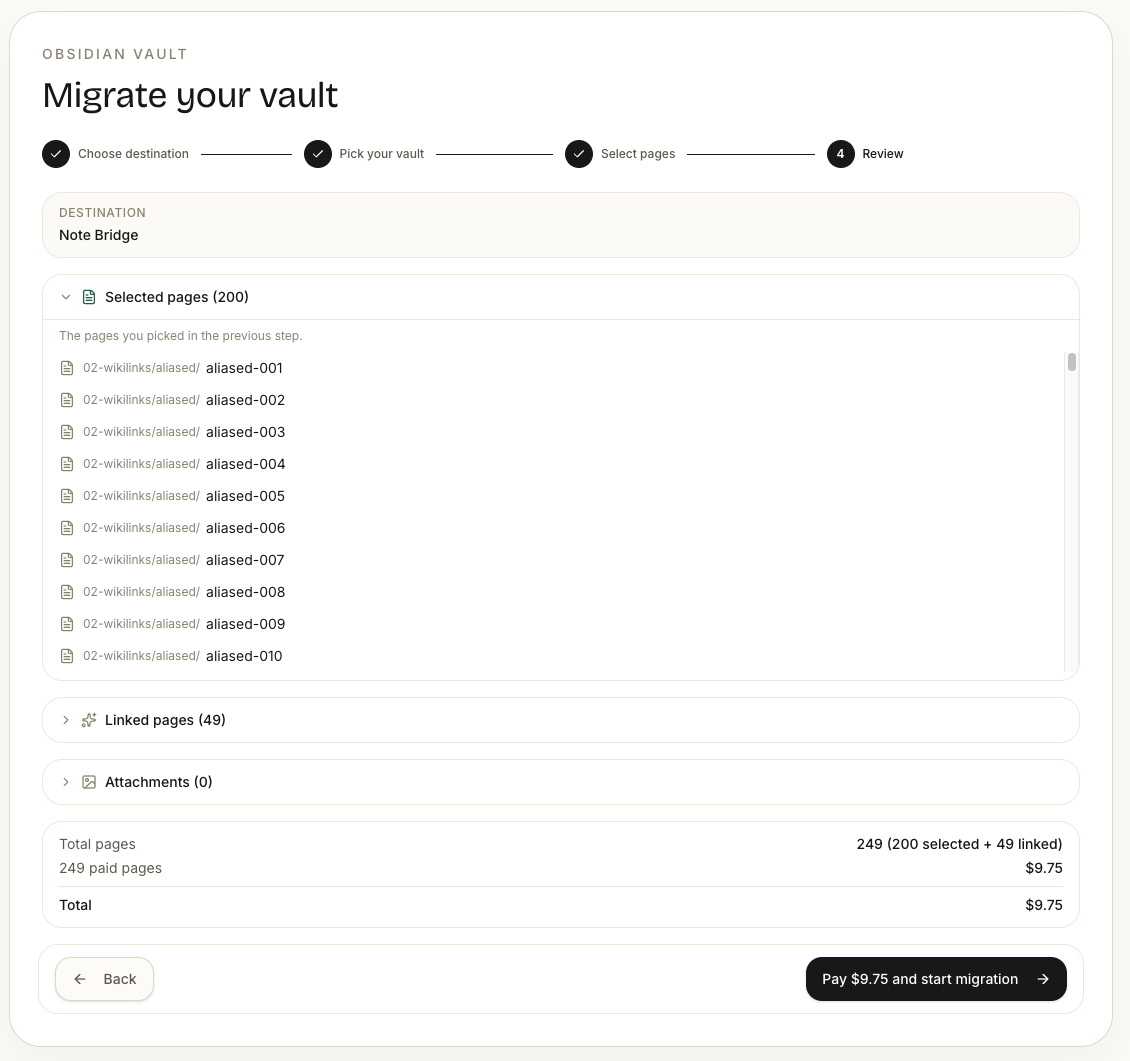
Browse the vault structure and select the notes you want. Note Bridge automatically expands the selection to surface pages those notes link to and any referenced image attachments. The review page shows:
- Selected — the notes you explicitly picked
- Closure — notes pulled in automatically because they're linked
- Attachments — referenced images, PDFs, and audio
- Skipped — files over 5 MB or in unsupported formats (
.canvas, etc.), with the reason listed
Each category can be unchecked individually. The total cost for this migration updates live at the bottom.
Step 4: Start the migration
Once you hit start, Note Bridge runs the two-pass process in the background. You can close the window and do other things — we'll email you when it's done. The migration report shows every page's conversion status, which links resolved, and which attachments were skipped.
What We Can't Migrate
Currently unsupported:
- Mermaid diagrams — preserved as code blocks but not rendered as diagrams (Notion API doesn't support Mermaid rendering)
.canvasfiles — unsupported, listed in Skipped- Dataview queries — not executed; the raw query text is kept with a "not supported" annotation
- YAML frontmatter doesn't auto-map to typed Notion properties — rendered as a readable Metadata block
If any of these is a must-have for you, reply to us — it helps us decide what to prioritize.
Conclusion
Obsidian is an excellent personal knowledge management tool, but when your needs change — team collaboration, multi-device editing, sharing pages with people who don't have Obsidian — migrating shouldn't be a frustrating experience.
Obsidian's own Markdown dialect isn't fully supported by Notion's official tooling. Note Bridge's approach is to write each of those differences down as an explicit conversion rule, and to solve the cross-file linking problem with a two-pass migration.
Give Note Bridge a try. The first 20 pages are free.
Related reading: The Complete OneNote to Notion Migration Guide. For the engineering story behind Note Bridge, see Microsoft Graph API rate limiting in practice.
Ready to move your Obsidian vault to Notion?
Scan your Obsidian vault first to check the notes, attachments, and migration details before anything is moved.
Scan my Obsidian vaultNothing is migrated until you review the scan result.